> ## Documentation Index
> Fetch the complete documentation index at: https://docs.mediamonster.app/llms.txt
> Use this file to discover all available pages before exploring further.
# Quickstart
> Convert an image with no account, then sign in and run your first Workbench line.
Three minutes to a first result. Images can convert in the browser with no account. Video convert and resize, AI skills, the Vault, and galleries need you signed in.
Open [mediamonster.app](https://mediamonster.app) and drop an image onto the monster.
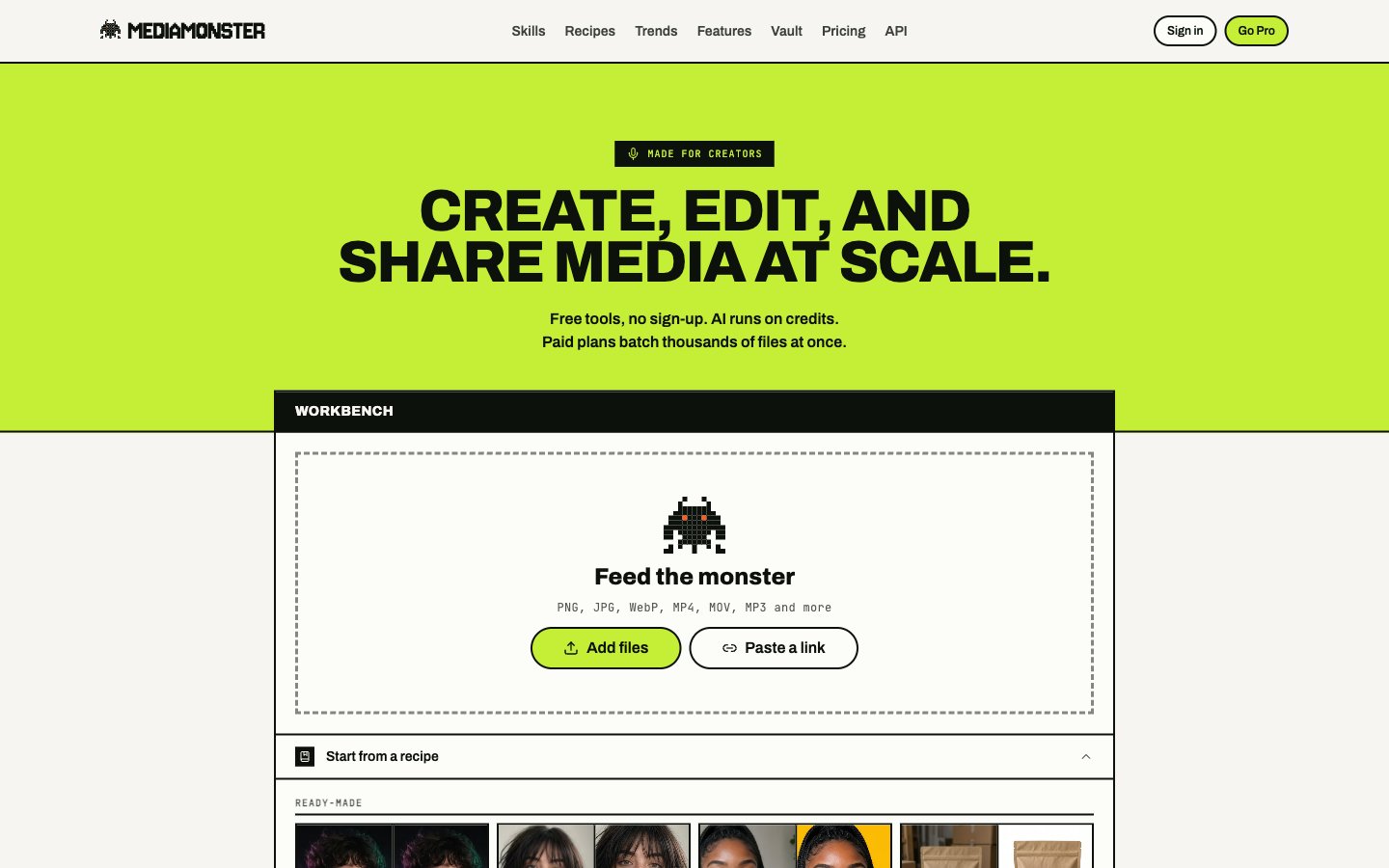 Resize it, crop it, or save it as PNG, JPEG, or WebP. Guests can send **3 files** at a time. The guest upload ceiling is **100 MB**.
Video and audio convert or resize run on our side — sign in for those.
Sign up at [mediamonster.app/signup](https://mediamonster.app/signup) with email, or with Google, Discord, or X.
Already have an account? Sign in at [mediamonster.app/signin](https://mediamonster.app/signin).
Resize it, crop it, or save it as PNG, JPEG, or WebP. Guests can send **3 files** at a time. The guest upload ceiling is **100 MB**.
Video and audio convert or resize run on our side — sign in for those.
Sign up at [mediamonster.app/signup](https://mediamonster.app/signup) with email, or with Google, Discord, or X.
Already have an account? Sign in at [mediamonster.app/signin](https://mediamonster.app/signin).

 Email sign-up sends a 6-digit code that expires in 10 minutes. Onboarding asks your name, what you make, and a plan. Use cases are **Social content**, **Online store**, **Video & film**, and **Building with the API**. Pick **Cyclops** to go straight to the Workbench. Minotaur and Kraken send you to pricing. Behemoth is not on this screen — choose it later from [Plan](https://mediamonster.app/plan).
The Workbench is the same dropzone, signed in. On a phone the tab is **Bench**.
1. Drop a file, paste a URL, or open something from the [Vault](/vault).
2. Add a skill from the picker — start with a [free tool](/skills/free-tools) or a cheap skill such as **Background remover**.
3. Press **Run**.
Email sign-up sends a 6-digit code that expires in 10 minutes. Onboarding asks your name, what you make, and a plan. Use cases are **Social content**, **Online store**, **Video & film**, and **Building with the API**. Pick **Cyclops** to go straight to the Workbench. Minotaur and Kraken send you to pricing. Behemoth is not on this screen — choose it later from [Plan](https://mediamonster.app/plan).
The Workbench is the same dropzone, signed in. On a phone the tab is **Bench**.
1. Drop a file, paste a URL, or open something from the [Vault](/vault).
2. Add a skill from the picker — start with a [free tool](/skills/free-tools) or a cheap skill such as **Background remover**.
3. Press **Run**.
 Nothing spends credits until **Run**. See [Workbench](/workbench) for how a line of steps works.
Download it from the result stage, or save it to the [Vault](/vault). Turn on **Save results to the Vault** in [Settings](/account/settings) if you want that to happen automatically.
To send a pack to a client, put Vault files in a [gallery](/galleries).
## What to try next
Podcast to clips, TikTok-ready, Shopify product images.
Paid plans get REST and MCP. Keys start `mm_live_`.
Nothing spends credits until **Run**. See [Workbench](/workbench) for how a line of steps works.
Download it from the result stage, or save it to the [Vault](/vault). Turn on **Save results to the Vault** in [Settings](/account/settings) if you want that to happen automatically.
To send a pack to a client, put Vault files in a [gallery](/galleries).
## What to try next
Podcast to clips, TikTok-ready, Shopify product images.
Paid plans get REST and MCP. Keys start `mm_live_`.