

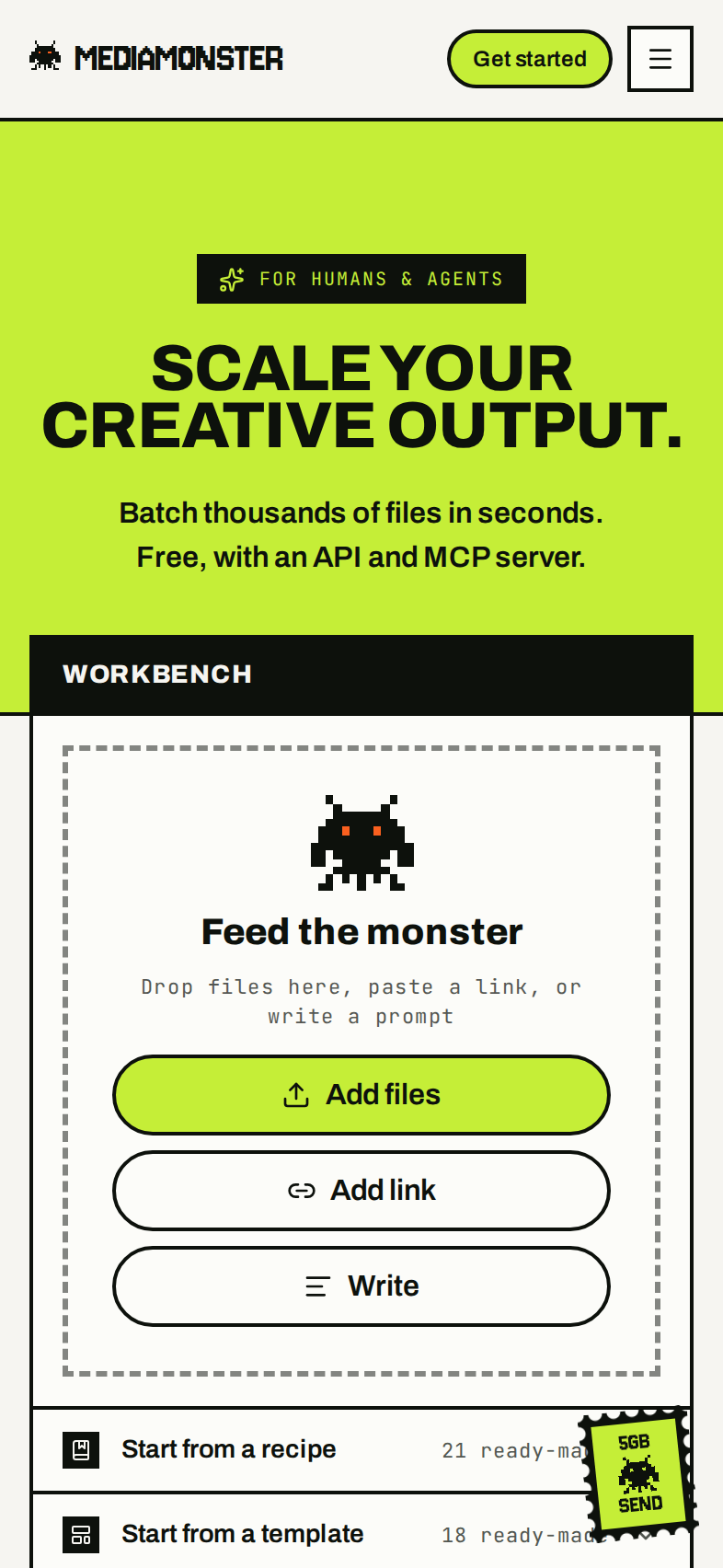
The landing page on a phone.
The tab bar
When the screen is narrower than 1,024 pixels, the rail down the left is replaced by a tab bar along the bottom. That covers phones and most tablets held upright. The bar has five slots. The first four are yours to choose. The fifth is always Menu.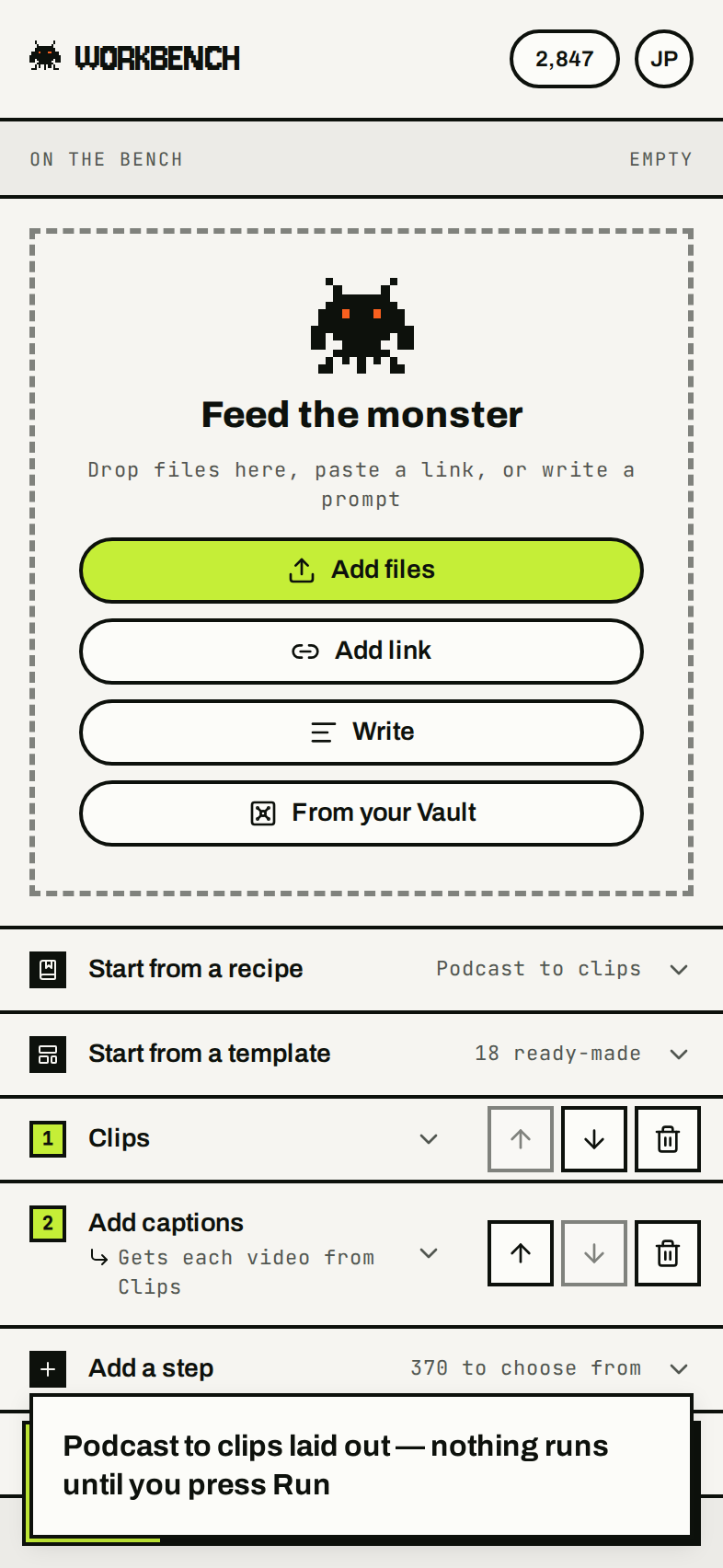
The Workbench on a phone. Bench, Queue, Vault, and Sends, then Menu.
Every other tab has the same name as its rail row.
Menu and your account
Press Menu for the rest of the work: the rail’s Workbench, Queue, Vault, Deliveries, Brands, Recipes, Trends, and Skills rows, less the ones that already have a slot on your bar. With the default bar that leaves Brands, Recipes, Trends, and Skills. Press a row to go there. Press anywhere outside the menu to close it.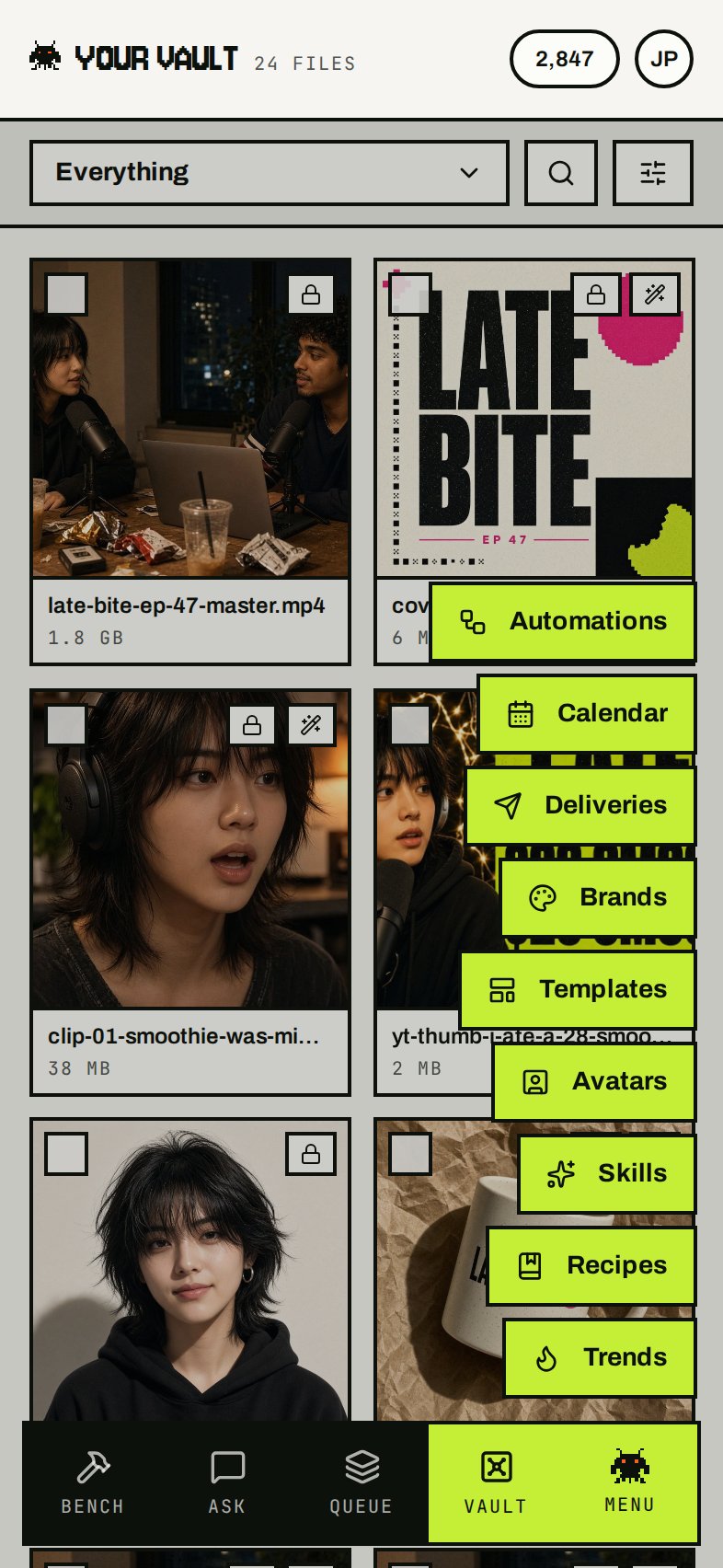
Menu, raised from the last slot. The rows are the pages the bar has no slot for.
Choose your tabs
Go to Account and find Tab bar.- Pick up to four places from Add to the bar.
- Use the arrows to change the order. Top to bottom in the list is left to right on the bar.
- Press ✕ to take a place out. The bar keeps at least one besides Menu.
- Press Back to the default to return to Bench, Queue, Vault, and Sends.
Things that work differently
- Uploads. The upload card sits above the tab bar. Closing the browser tab stops the upload, as it does on a computer. Keep the tab open until each file is in. See Vault.
- Runs. A strip along the top edge of the tab bar shows the run that is going, or one that has just finished or failed. Press it to see the run in the Queue.
- Selecting files. In the Vault, selecting files turns the tab bar into actions for them. More holds the rest.
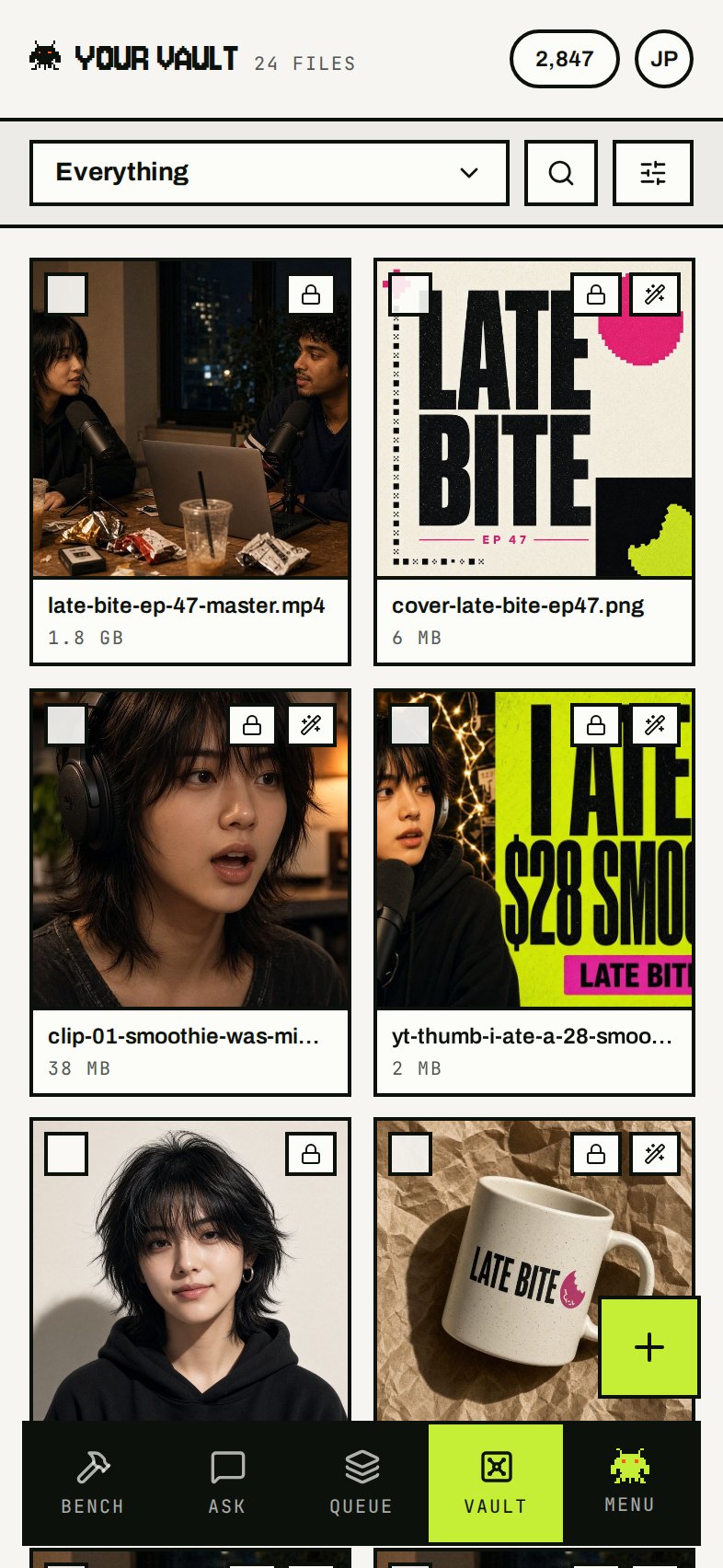
The Vault on a phone.