

Catalogue
These ten appear in this order on/recipes and on the landing page.
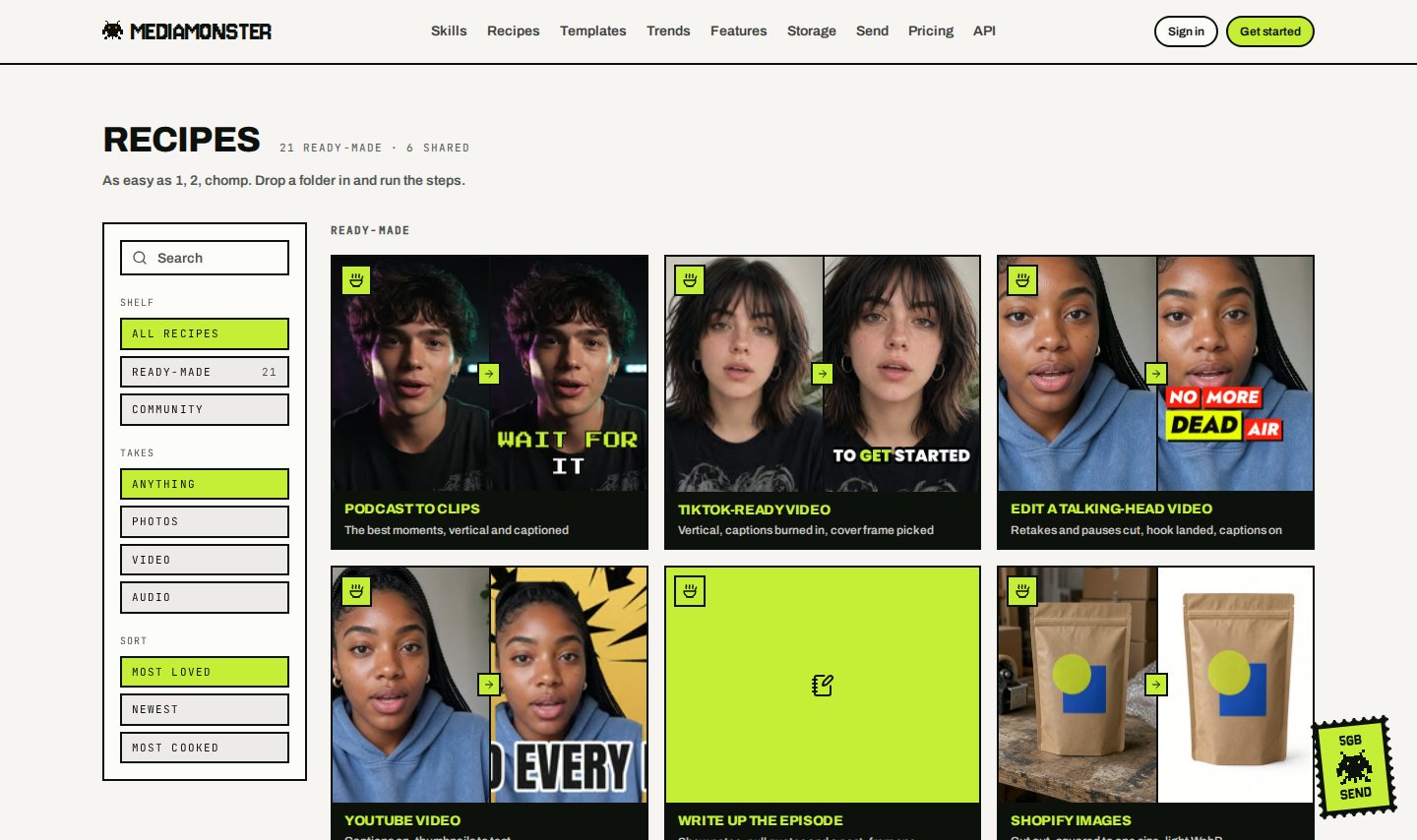
The catalogue recipes
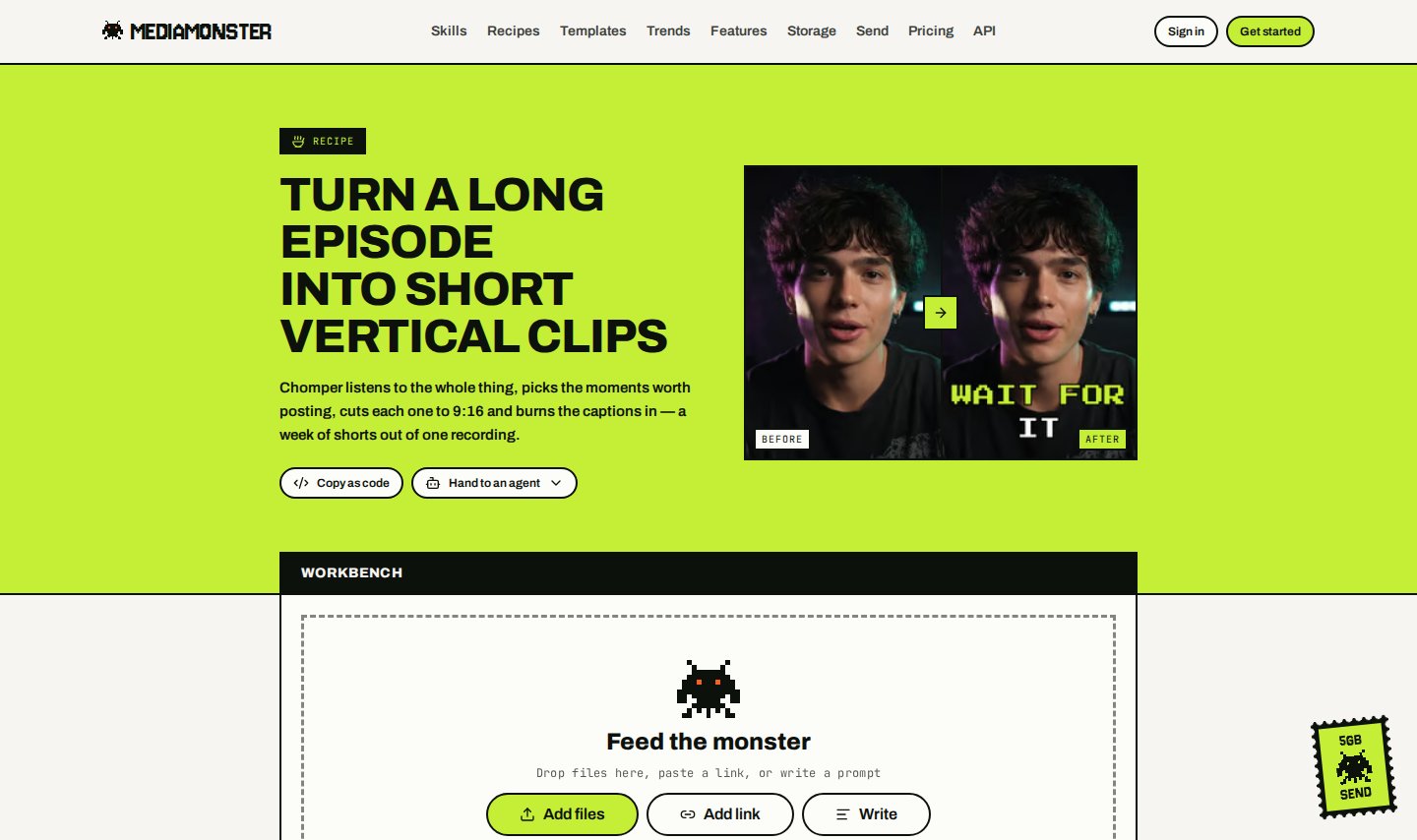
A recipe page is the Workbench with the steps already laid out
Product showcase and Listing tour run on several photos dropped together: every step above the Join runs on each photo, and the Join puts the clips end to end in the order they were dropped. Social video from a topic needs an avatar and a topic typed on the Workbench, and Put my site in a laptop needs the link to the page. None of the four is on
GET /api/v1/recipes, because an API run takes one file and no typed words — send their steps yourself instead.
Virtual staging, sky replacement, and day-to-dusk stay as single skills. A recipe runs every step on every photo, and one recipe can’t furnish an interior, swap a sky, and drop it into dusk in the same pass.
Write up the episode is the one recipe whose order doesn’t matter: all three steps hand back words and leave the recording untouched, so none of them reads what the others wrote. Everywhere else the order is the whole reason the recipe exists — a scan is read before it is cropped because the text layer is written against the page as scanned, and Ready to send out converts in the middle because redacting hands back a text file and a stamp needs pages to go on.
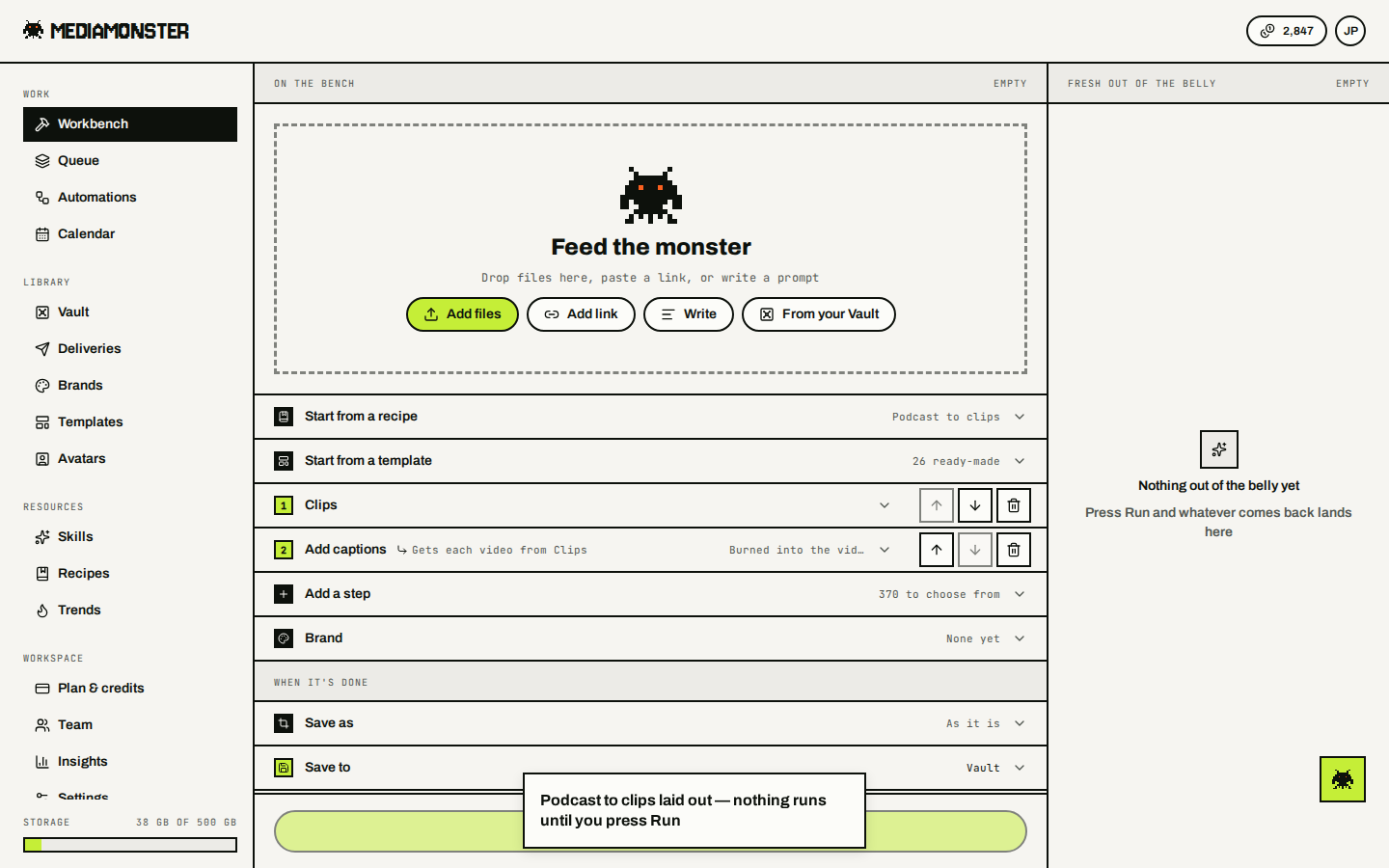
Podcast to clips on the bench: Clips, then burned captions
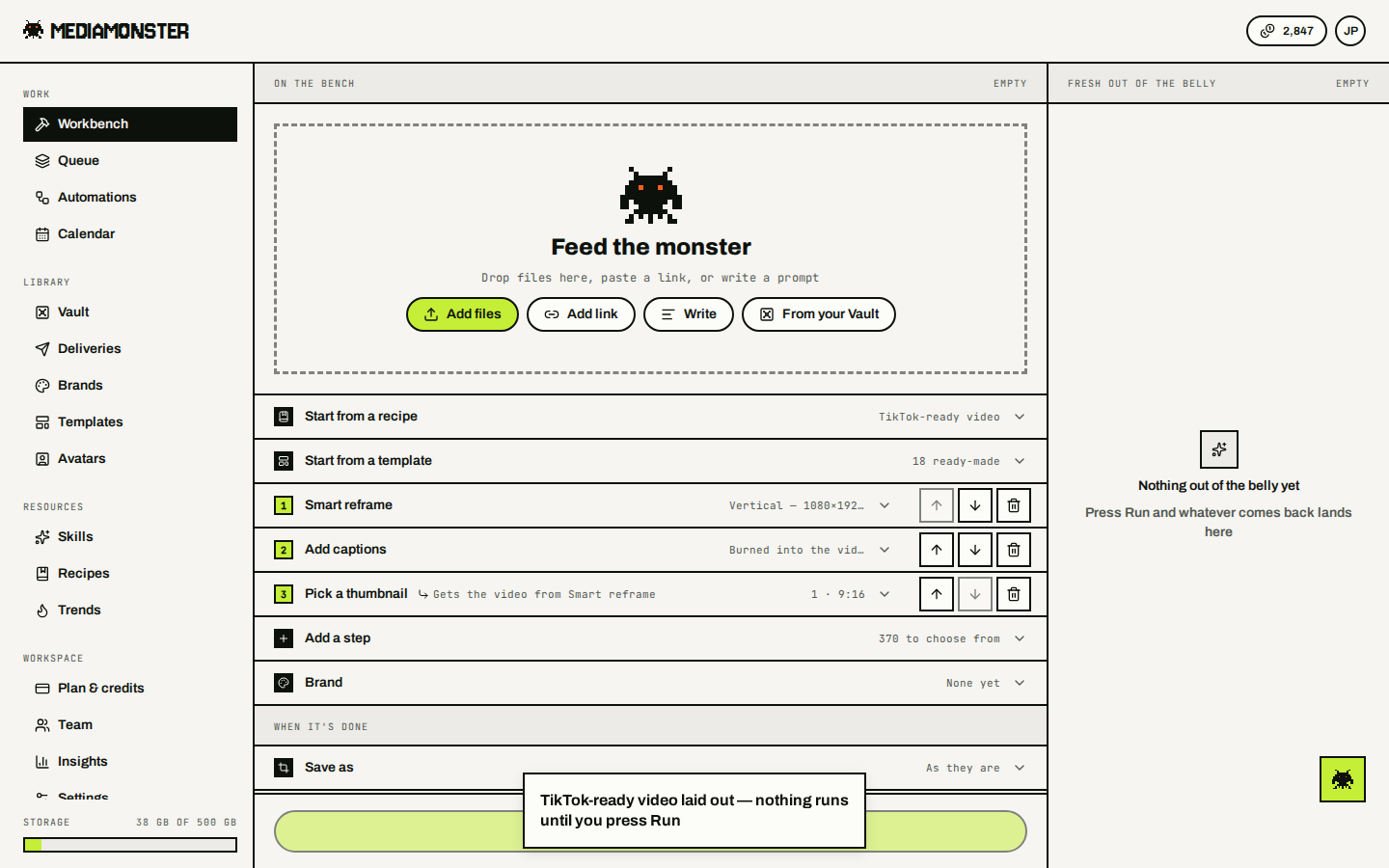
TikTok-ready: Smart reframe to 9:16, then captions, then a thumbnail
TikTok-ready is billed as three skills. Drop any step you don’t want. It also covers Reels and Shorts.
Caveats the recipes inherit
- Podcast to clips and Clips pick moments from what is said, not from what is shown.
- YouTube-ready keeps captions first because the thumbnail makes a set. Burned captions can appear in the thumbnail unless you switch captions to the subtitle file only.
- Shopify product images — compose is 1:1 white at 2048 px, WebP quality 90.
- Amazon listing images doesn’t guarantee Amazon acceptance. The compose uses scale 85 at 2000 px, JPEG quality 92.
- Interview tidy-up — take noise-removal out if there is music under the talking.
Your recipes
Save as a recipe on the Workbench stores the steps on your account.
Rename, duplicate, delete, or open them at
/my-recipes. A backdrop from your own files can’t be saved into a recipe.
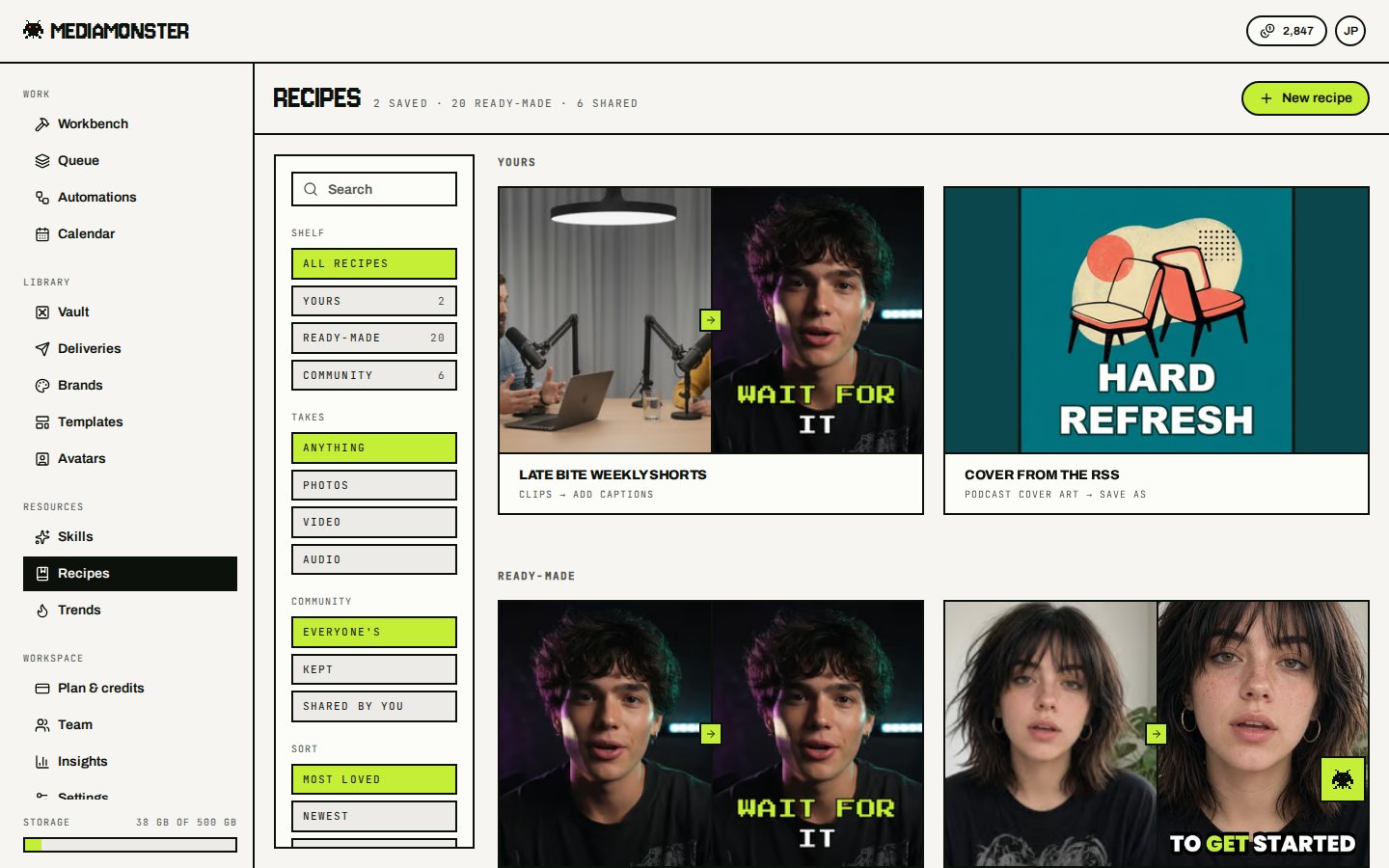
Your recipes sit above the ready-mades. The public catalogue never lists yours until you share one.
Versions
Every change to a saved recipe’s steps is a new version, numbered from 1. Renaming it isn’t. History on its tile lists every version, newest first: who saved it, when, and what changed (a step added or removed, an option or a prompt changed). Restore on an older one saves its steps again as a new version on top, so the version it replaces is still in the list. A restore is written to your activity log. An automation running a saved recipe follows it by default: each run takes the recipe’s latest steps, so an edit on the Workbench changes what runs next. To stop that, open the automation and set Recipe to Stay on version n. The API does the same withmy-recipe@3. See Run one version of a recipe.
Community recipes
Signed in, other people’s shared recipes are the third shelf of/my-recipes, beside Yours and Ready-made. The Shelf filter picks one; All shelves stacks the three in that order, with the community grid last. The page header adds the shared total to the counts of yours and the ready-mades.
Signed out, /recipes/community is the same shelf on its own crawlable page under the public Recipes landing. A signed-in visit to /recipes/community is redirected to /my-recipes with the Community shelf up and whatever the link carried (?recipe=<slug> opens that recipe’s panel). The three most-kept recipes also appear on /recipes under From the community.
Filter by what a recipe takes (Photos, Video, or Audio), sort by Most loved, Newest, or Most cooked, and switch between three community shelves: Everyone’s, Kept, and Shared by you.
On a community card you can:
- Keep the recipe. Kept recipes show up on your Kept shelf.
- Save a copy into your own recipes. Your plan’s saved-recipe limit applies.
- Open on the bench to run it on your own files. The steps load at
/workbench?community=<slug>and read live, so the link always lays out the recipe as it is now.
Sharing one of yours
On/my-recipes, press Share on a recipe tile. Write a one-line summary, then confirm. The dialog gives you the link to send, the running Kept and Cooked counts, and a Stop sharing button.
What travels: the name, the steps, the one-line summary, and a display name (or Anonymous if you haven’t set one). Never your files, your runs, or your email.
The link is minted once and kept. Stop sharing closes it; sharing again reopens the same link.
Inputs
Write{{name}} in a step’s prompt or an option wherever the recipe should ask for something each time it runs: A poster for {{event}}, or {{language}} as a dub’s language. Those names are the recipe’s inputs. Nothing else declares them, so an input comes and goes with the step that uses it.
On the Workbench, steps with inputs grow an Inputs section with a field for each. Fill them in and press Run. Each input can be given a label, a kind (text, long text, number, link or a choice from a list), a default, and whether it has to be filled in. A saved recipe keeps those settings.
The same inputs are filled everywhere the recipe runs:
- The API and MCP send them as
inputs. See Run a recipe. - An automation stores a value for each, and a request to its link can send its own.
- An upload page draws a field for each one the automation doesn’t store, above the drop area. When the first step makes its own file, the page is only fields and a Send button: a page people fill in.
- A batch fills them from a spreadsheet’s columns, one row at a time. See Batches.
From the API
POST /api/v1/runs accepts a saved recipe or an inline steps array, and the recipe’s inputs. A saved recipe runs its latest version unless you name one (my-recipe@3), and a version asks for its inputs as it did when it was saved. See Run a recipe.