

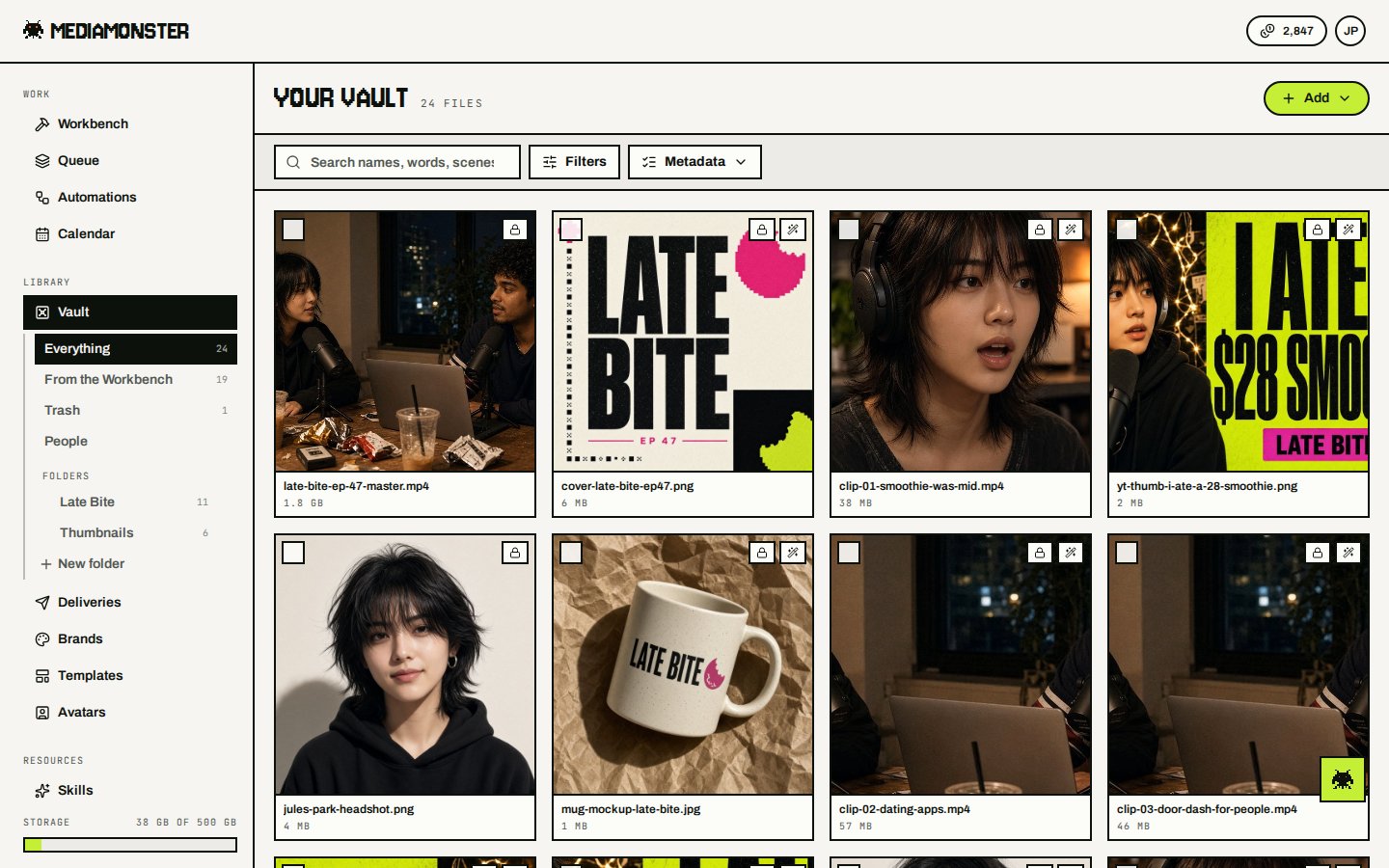
The Vault. Views nest under the rail. Files saved from a run are tagged From the Workbench.
Views
The URL picks the view:
Filter by kind (photo, video, audio, or document), folder, or tag. Open a file at
/vault/<id>.
Uploading
Press Add files. Files go into the folder you are looking at. While they go up, a card at the bottom right of the app shows each file’s progress. On a phone it sits above the tab bar. You can move to other pages while it runs. Close the tab and the upload stops, so the browser asks before you leave. Press ✕ on a file to stop just that one, or Cancel at the top of the card to stop every file still going up. A file that has finished going up and is being checked can’t be stopped. If a file fails, press Retry on its row to send it again. Files the Vault doesn’t take have no Retry, because they would fail again. When a file is in, click its row to open it. A file the Vault already had says so. Nothing is stored twice. The card closes by itself if nothing failed. If something failed, it stays open until you close it, so you can see why.Search
The search box in the Vault toolbar searches the whole view you are in, not only the files on screen. It works together with the kind, tag and folder filters. Results come best match first. It looks in:- the file name, title, tags, folder, alt text, camera and lens
- a short description of what is in each picture, and the first page of each PDF
- the words in a picture or a PDF, such as a sign, a slide or a scanned letter
- what is said in video and audio recordings up to 30 minutes long
invoice march, or describe what you want, like red coat on a rooftop at sunset. Small typos and half-typed words still find a match: rooftp, roof and rooftpo all find rooftop. Put words in quotes to find them together, and put - in front of a word to leave it out.
If a file matched on something other than its name, the tile says where. Said in it means the recording, Words in it means text in the file, What’s in it means the picture’s description, and Close in meaning means the file is about what you typed without using your words. When there is text around the match, the tile shows it with your words marked.
Find similar on a file’s page shows other files that look or read like it.
New files become searchable by name, tags and folder straight away. Reading what is in a file takes a few minutes after it lands. A file stored before search was added is read in the background. Each workspace has a daily limit on this reading, so a very large upload can take a day or two to be fully searchable. It doesn’t use your credits.
Recordings are read on paid plans only. A guest’s search only finds files in the folders shared with them.
Folders
Folders sit under the Vault on the rail as a tree. Press the arrow beside a folder to open it. A folder is written as a path, such asClients/Acme/Shoot 1.
- New folder at the foot of the tree makes an empty folder at the top. Use … beside a folder and New folder inside to make one inside it.
- Rename and Move to… under … take everything inside the folder with it. Anyone the folder was shared with keeps their access at its new name.
- Drag files from the grid onto a folder to move them there. Drag a folder onto another folder to move it inside.
- Delete removes an empty folder. A folder with files in it asks first, then moves those files to the trash. Restoring one puts it back under the folder’s old name.
Working with many files
Tick a file to select it. Hold Shift and tick another to select every file between them. Select all selects every file on screen. Press Esc to clear the selection. The bar above the grid then offers:
Each action changes only the files you are allowed to change and tells you how many it skipped. The trash actions and Combine as versions are the exception: they change all of the selection or none of it.
How long files stay
The allowance is the workspace’s, shared by everyone in it. Paid plans can add 100 GB for $3 from the plan page. Extra storage doesn’t change Cyclops expiry.
Roles in the Vault
What you can do with a file depends on your role and on any folder sharing:
Buttons you can’t use aren’t shown.
Sharing folders
Open a folder and press Share folder to see People with access. Owners and admins can:- give someone in the workspace a different role in this folder. A viewer can be allowed to edit one folder, or a member held to viewing one.
- add anyone else by email as a guest who sees this folder and nothing else. They get an email invitation.
- remove a folder role with the cross. A person in the workspace goes back to their workspace role there. A guest loses the folder.
Clients/Acme under Clients. Owners and admins always see and edit every folder.
Import from Drive and Dropbox
Bring whole folders across from Google Drive or Dropbox instead of downloading and uploading them again.- In the Vault, press Import in the toolbar.
- Pick Google Drive or Dropbox. The first time, you are sent to connect it. Mediamonster only reads your files and never changes them.
- Press Pick files and folders. You get Google’s or Dropbox’s own picker, so shared drives, search and recent files work the way they do there. Tick files, folders, or both.
- Choose the Vault folder to import into. It defaults to Drive import or Dropbox import, or the folder you are looking at.
- Press Start import.
Shoot A/Selects in Drive lands in the Vault folder Drive import/Shoot A/Selects. A very deep path keeps its first and last folders and shortens the middle.
Every file goes through the same checks as an upload: the same types, the same size limit for your plan, and the same storage allowance. A file already in your Vault isn’t stored twice. Files that don’t come in are listed in the banner under Show what was left behind, each with the reason:
One import takes up to 5,000 files. If your Vault fills up partway, the import stops and says so. Anything already imported stays.
When a large import finishes, you get an email with what came in and what was left behind. It follows the When a file is done switch in Account.
To take the access back, open Account and press Disconnect under Connected storage. This revokes it with Google or Dropbox as well. Files you already imported stay in the Vault.
Automations
To run a recipe on the files that land in a folder, schedule it from the Workbench: stack the steps with nothing on the bench, pick a time under Schedule, and pick the folder under Takes new files from. Every file that landed in it, or a folder inside it, since the last run is run through the steps — every hour, if you like. Files a schedule makes are taggedschedule: and its name, show Automation as their source, and never set off a schedule themselves, so saving results into the folder a schedule watches is safe.
Versions
A file can get new bytes and keep everything else: its share link, CDN link, folder, tags and alt text. Each set of bytes it has had is a version. On a file’s page, open Versions under File. Each version is a row. The top one is the current version, marked Current.- Drag a row by its handle to reorder the versions, or focus the handle and use the arrow keys. Moving a version to the top makes it the current one. Version numbers follow the order, with the highest at the top.
- Press New version under the list, or drop a file on the list. The new version has to be the same kind of file as the old one. Once it’s uploaded, it opens and asks what changed. Type a note or leave it empty.
- On the Workbench, a result made from a Vault file offers Save as new version next to Save to Vault. It replaces the original’s bytes instead of adding a new file.
-
Each row shows the note (or the file name) and its version number. Click a row to open that version and see who uploaded it and when. There you can:
- Edit What changed.
- Make current to move an old version to the top. Nothing is copied, so it takes no extra space.
- Compare with current to see the two side by side. Pictures get a slider to wipe between them. Videos play in two players.
- Download that version’s file.
- Make it a file of its own to take an old version out of the history and put it in the same folder as a separate file, with the same tags.
- Delete an old version for good. The current version can’t be deleted. Delete the file instead.
Combine files into one
When you’ve uploaded several files that are really one file’s drafts, such ashero_final.jpg, hero_v2.jpg and hero_v3.jpg, combine them into one file with versions.
- In the Vault, tick the files and press Combine as versions. They have to be the same kind of file: all pictures, all videos, all sound or all documents.
- The dialog shows the versions they will become, newest at the top, marked Current. It starts in the order you uploaded them. Drag a row to change the order.
- The file you uploaded first, marked Kept, keeps its share link, CDN link and folder. The others’ share and CDN links lead to it from then on, and show its current version while its own links are on. Their tags, empty fields, collections and usage are added to it.
- A file that already has versions brings all of them with it.
v2, final, copy, (1), edit or a date to one already in the same folder gets a Combine prompt. Under Versions on a file’s page, look-alikes in the same folder are listed with a Combine button. Nothing is combined until you say so.
To undo part of a combine, use Make it a file of its own on the version you want back.
Every version counts against your storage until you delete it. Moving a file to the trash keeps its versions, and deleting the file for good deletes them all.
Deliveries keep their own copy of each file. A delivery you already sent keeps showing the version it was sent with. Add the file again to send the new version.
The CDN link and the share link serve the current version. Allow up to an hour for a new version to replace the old one in browsers and caches.
Anyone who can view a file can see its versions. Adding, reordering and deleting versions needs edit access to the file’s folder. Combining files needs edit access to every one of them, and delete access too, since all but one stop being separate files.
Auto-save
In Account, turn on Save results to the Vault if you want Workbench outputs stored without an extra click.Share and CDN
Each file can have:- a share link on the app (
/s/<slug>) or onhttps://mediamonster.link/... - a CDN link,
https://mediamonster.dev/a/<assetId>/<filename>, only for published assets. CDN links made before the move to mediamonster.dev, onhttps://mediamonster.link/a/..., keep working
Insights
Insights, under Workspace on the rail, shows which files get used, by whom, and where. It is at mediamonster.app/insights. Owners, admins and members of the workspace see it. Viewers and guests don’t. Pick 7 days, 30 days or 90 days. The page shows:- Views, Downloads, CDN origin serves and Data sent for the range
- Last 12 months: one square a day for the past year, darker the busier it was, whatever range is picked. Switch between views and downloads, and hover or tap a day for its numbers
- Most viewed and Most downloaded files
- Top deliveries: page opens, files viewed and files downloaded
- Downloads by channel: deliveries, share links, the CDN and the Vault. A delivery’s zip counts once per file in it
- Unused for 90 days: files in the Vault for more than 90 days that nobody viewed, downloaded or served since. Biggest first. Move to trash moves the ones you can delete to the trash
- Storage by folder and Storage by kind
- Top searches and Searches with no results from the Vault’s search box
Crawlers, link previews and uptime checkers aren’t counted. No IP address is kept. A delivery recipient is named only when they open the link from their invitation. Anyone else counts in the totals but isn’t named. Searches are kept with their words for the workspace’s owners, admins and members. A guest’s searches aren’t recorded.
A file’s page has a Usage row under File. It shows the last 90 days of views, downloads and CDN origin serves, the day the file was last used, and a line of the last 30 days. A delivery’s page has an Opens and downloads row with who opened it and how many files each recipient downloaded.
Raw events are kept for 400 days. Daily totals per file are kept for good, so Last used stays accurate after the raw events are gone.
Metadata
Each file’s page has a Metadata row under File. It holds your workspace’s own fields: a client, a shoot date, an approval, whatever your team files by. The workspace’s owner and admins set up the fields in Workspace settings under Fields. A field can be:
A field can be required. The file page then says when a file is missing it, and nobody can empty it. You can ask for a field only on some kinds of file, for example only on video. You can rename a field and every value stays on its files. You can’t change a field’s kind after you make it. Make a new field instead.
Pick one, Pick several and Yes / no fields show up as filters in the Vault’s Filters menu.
Edit many files at once
Select files in the Vault, then open Metadata in the toolbar and choose Edit selected. Only the values you fill in are written. Empty fields keep each file’s own value. The same dialog adds tags and sets usage rights on every file you selected. Files in folders you can only view are left as they are, and the dialog tells you how many.Export and import a spreadsheet
Metadata → Export CSV downloads one row per file. It exports the files you selected. With nothing selected, it exports the folder you are in, or the whole Vault. The CSV has the file’sid and file_name, then the title, alt text, tags, usage rights, and one column for each field, named by the field’s key.
Metadata → Import CSV or XMP reads a CSV back. Start from an export, edit it in a spreadsheet, and import it. Rows are matched by id, or by file_name when there is no id. When two files share a name, add a folder column. Before anything is written, you see every row, which file it matched, and what changes from what to what. Rows with a problem are listed and skipped.
- An empty cell leaves a value as it is. To empty a value, write
(clear). tagsreplaces a file’s tags. Anadd_tagscolumn adds tags instead. It can’t empty them, so(clear)there marks the row as a problem.- Separate several choices or tags with
;.
.xmp files and each is matched to the Vault file with the same name, so IMG_0001.xmp lands on IMG_0001.CR3.
Metadata already in the file
Photos often carry IPTC and XMP metadata written by a camera, Lightroom or a photo agency. When you upload a photo, the Vault reads it:
The Vault only fills in what is empty. It never overwrites what someone typed. To send the creator or the location to one of your fields, edit the field and pick it under Filled on upload from the file’s. Every workspace starts with three fields that do this for photos: Creator, Location and Source. Delete any you don’t want. The file page lists everything the file said under In the file (IPTC / XMP).
Download with metadata
On a JPEG or PNG, Download opens a menu. With Vault metadata downloads the file with its title, alt text, tags, creator, copyright, credit line and usage terms written into its XMP. Lightroom, a CMS or a stock site then reads them from the file. Any other metadata already in the file stays. Original file gives you the file exactly as it was uploaded. You get the original file instead, and the page says why, when:- the file already says everything the Vault knows about it
- the file carries Content Credentials. Rewriting it would break them. These files have no menu, only Download.
- the file is over 24 MB
Usage rights
Each file’s page has a Usage rights row under File. It records:- the licence: owned outright, royalty-free, rights-managed, editorial use only, a Creative Commons licence, or custom terms
- the licensor or source, the usage terms, and the allowed channels and territories
- when the rights expire, and an embargo date before which the file must not be used
- whether there is a model release and a property release, with a link to the signed release in the Vault
- the credit line and the copyright notice
Content Credentials
When a file carries Content Credentials (C2PA), or an AI skill made it, its page shows a Content Credentials row under File. It says who signed the file, whether the signature still holds, what was done to it, and whether an AI model made it. See Content Credentials.From the API
GET /api/v1/assets lists what is in the Vault and how much room is left. POST /api/v1/assets stores a finished job with a job_id. GET and POST /api/v1/assets/{id}/versions read a file’s history and add a new version. See Assets and galleries.
To run a skill, a recipe or a conversion on a Vault file, send its asset_id instead of a file or URL, and add save_to_vault to file the result back. See Run a skill. AI agents reach the Vault and deliveries through MCP: search, tag, move, share, make a delivery, and read what clients said.
A key works in the workspace its owner is working in when the call lands, with that person’s role and folder sharing. A guest’s key lists only their shared folders.